

Treatment Inventory - Summary
The Treatment Inventory tool allows Users to create and track environmental treatments used to manage water systems, as well as edit and transfer these inventory items.. Below is a step-by-step guide on how to utilize this tool.
NOTE: Adding Treatments to your Facility is a two step process.
Add New Inventory
-
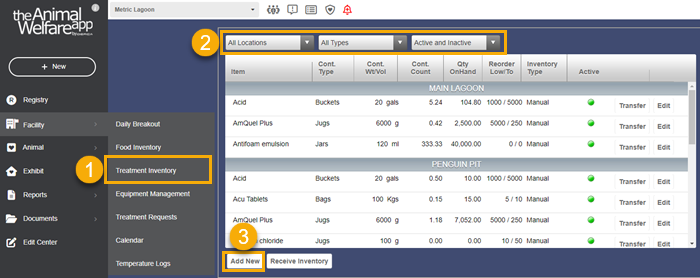
Click on the Treatment Inventory button within the Facility menu from the Navigator panel on the left.
- A list of all Treatment Inventory that has been entered into the system will appear; grouped by each area it was assigned to when created. Filters at the top of the grid allow the User to narrow which treatments show in the list.
-
To add a new treatment item to the system, click on the "Add New" button.
-
Select the Storage Location or Area/Exhibit the Treatment is assigned to (or stored in).
-
Select the treatment Inventory Item from the drop-down list.
-
Select the Unit of measurement the treatment is received and administered in.
-
Make sure the inventory is marked as Active if currently in use. Any inventory items that are not marked as Active will not appear in treatment tools or reports.
-
Select Manual or Automated depending on how the chemical treatment is applied and therefore will be deducted from inventory.
IMPORTANT: The information entered into this top section of Treatment Inventory is a permanent record for each chemical item and is used to track specific inventory. This information can NOT be changed or edited once submitted into the system.
-
Select the Container Type for the inventory from the drop-down menu. Fill in the weight or volume of the container.
NOTE: The value entered into the "Cont Wt/Vol" [Container Weight/Volume] field should represent the Unit that has been assigned to the treatment. For example, if a treatment is received, measured and administered in gallons; then the Cont Wt/Vol field should be a number that represents how many gallons the container type holds.
-
[Optional] Enter a Re-Order Low and RE-Order To amount.
-
Click on the "Submit" button when complete.
Receive an Inventory Item
Once a Treatment item is created, you then need to receive a quantity of that item into your Treatment Inventory.
-
Click the Receive Inventory button to launch the receive inventory modal.
-
Select the date the inventory was received. This will always default to the current date.
-
Select the Storage Location of the item you are receiving.
-
Select the Treatment Item you are receiving.
-
Enter the quantity that is being received. This quantity should be entered as the total units being received (and NOT the number of containers).
-
Click Submit when finished.
To Edit an Inventory Item
Once a Chemical Inventory item is created, certain metrics for that specific item can adjusted. Specifically, container weight/volume and container count can be edited to allow for reconciliation of inventory items already created.
-
Select the Item you want to edit from the list. When selected, the row will be highlighted in blue.
-
Click the "Edit" button located on the right side of the selected row.
-
The Edit/View Inventory pop-up window will open. The information in the top portion of the form can not be changed as this is used to track specific inventory items.
-
The information in the bottom portion of the Edit tool can be modified to reconcile inventory amounts or adjust schedules for automatic treatments.
-
Once the required adjustments have been entered, press the Submit button to complete the record.
To Transfer an Inventory Item
-
Select the Item you want to transfer from the list. When selected, the row will be highlighted in blue
-
Click the "Transfer" button on the right side of the selected row.
-
The Transfer Item pop-up window will open. Select a location from the "Transfer To" drop-down menu; then select both a unit and quantity you want to transfer. When complete, click the "Submit" button.
NOTE: The drop-down menu next to the "Transfer" label will give you the option of transferring a specific unit amount [Item Units] OR Containers. For example, you may choose to transfer a certain amount of tablets (or liters, whichever the unit measurement may be); or you may want to transfer an entire bucket (or drum, bag, etc.) of that inventory.
IMPORTANT: Once an inventory item is created in the system; the Container Type and Units of Measure cannot be changed for that specific inventory item.
Comments
0 comments
Please sign in to leave a comment.