

How to Sync Data with OERCA's Mobile App
OERCA's mobile application allows users enter information even if they are not connected to the internet. Below are a few helpful tips to keep in mind when managing OERCA's mobile app.
Menu Icons
There are a few menu icons in the mobile app that help you determine when you are online or offline; and when you have data that needs to be synced to the servers.
NOTE: When you first log into OERCA's mobile app an internet connection is required to access your company's data. Once connected, you can continue to use OERCA's mobile app even if you loose your internet connection.
-
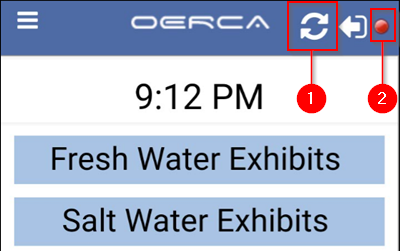
Sync Indicator: The sync indicator lets you know if you have data that needs to be synchronized to the servers; and will revolve in a circular motion when actively uploading data. If you loose your internet connection for a period of time while you are recording information, you will see this static icon at the top of the menu letting you know there is still information that needs to be uploaded. When you resume your internet connection, simply press this icon to initiate your data sync.
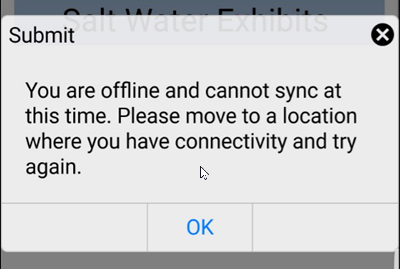
IMPORTANT: If you attempt to sync information before you have resumed an internet connection, you will receive a message letting you know that a connection is not available (see image below).
-
Connection Indicator: The orb (circle) in the upper right hand corner of the mobile app lets you know if you are connected to the internet. A GREEN orb means you have a connection, while a RED orb means that you do not.
Sync Error
The message below will pop up if you try to sync information before you re-establish an internet connection:
Comments
0 comments
Please sign in to leave a comment.