

Summary
OERCA's Mobile Web App has quickly become one the most popular and utilized tools among our Members. With current trends indicating that Progressive Web Apps (PWAs) are beginning to replace many native apps, OERCA has dedicated considerable resources to providing a stable PWA that will meet our Users' needs. And best of all, using OERCA's PWA is simple! The article below will show you how to easily create a shortcut on your mobile device so you can access the OERCA Web App with the tap of a button!
To create a shortcut to OERCA's PWA on your mobile device, follow these easy steps:
Note:
The example below demonstrates the steps required with the Safari browser on an iPhone; however, the process for any mobile browser is similar. You can scroll further down this page or click here to view an example of how to add a shortcut to our PWA on an Android device. You can also check out our video tutorial.
-
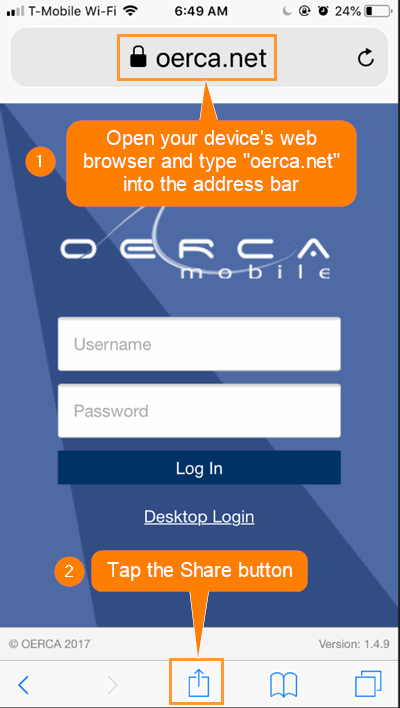
Open the Safari web browser on your apple phone or tablet and type in oerca.net in the address bar.
-
Tap on the share button at the bottom of your browser window.
-
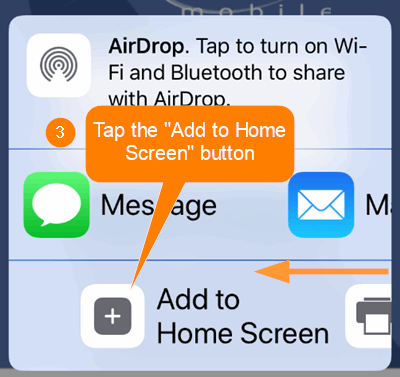
Scroll the bottom menu bar to the left until you see the "Add to Home Screen" button and tap it.
-
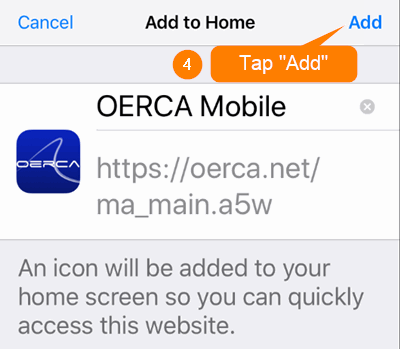
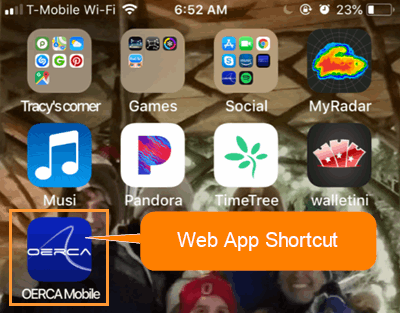
Click the Add button and the App icon will appear on your home screen for easy access.
Create a Shortcut To The OERCA PWA On An Android Device
-
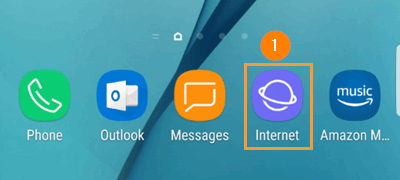
Open the Android web browser on your phone or table. The example here is the Samsung browser; however, this process can be completed with almost all modern mobile web browsers.
-
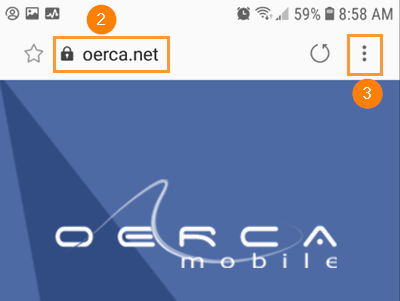
Go to the oerca.net web address.
-
Tap on the three dots in the upper right corner of the browser to open the settings menu.
-
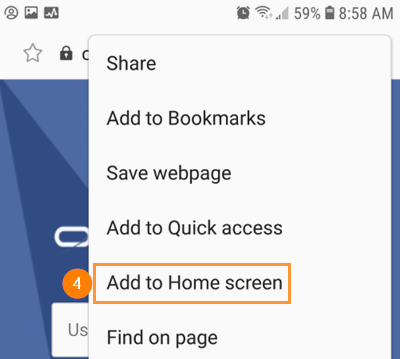
Tap on the "Add to Home screen" option.
-
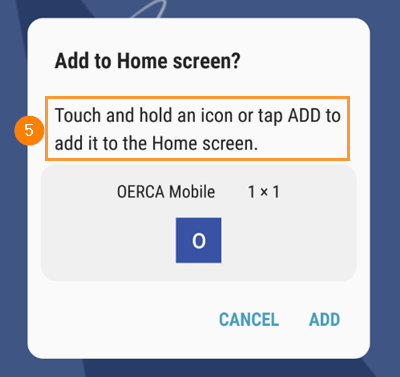
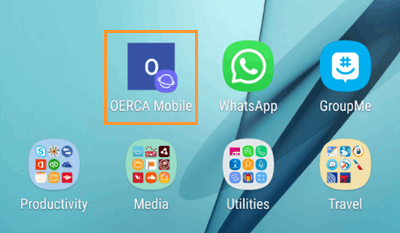
Follow the instructions. You can simply tap on the "ADD" text, or touch and hold the icon to place it on your screen.
-
Enjoy OERCA's Progressive Web App!
Comments
0 comments
Please sign in to leave a comment.