

Summary
OERCA's mobile web app was designed to simplify many types of record input. Below are detailed instructions showing how Animal Respirations (amount of breaths taken in a given period) are entered into the system utilizing OERCA's mobile application.
To record animal respirations via the mobile app, follow these steps:
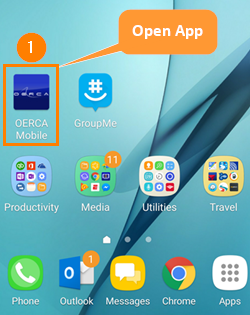
- Open the OERCA mobile app on your phone or tablet (if you have created a shortcut to your home screen) or go to oerca.net on your mobile browser.
TIP: While most people are familiar with "native" apps that are downloaded to your mobile device; there are many notable benefits to using Progressive Web Apps (PWAs) when available. Due to these special benefits and current trends that often make PWAs preferred over native apps, The Animal Welfare App utilizes this PWA technology.
-
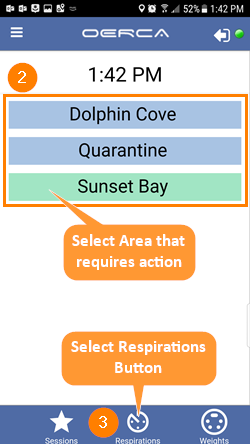
Tap on the area in which respirations will be recorded. Once selected, the area button will turn green.
-
Tap on the Respirations button located at the bottom of the screen.
NOTE: The activity buttons at the bottom (Session, Respirations, Weights, etc.) will not show up until an area is selected.
-
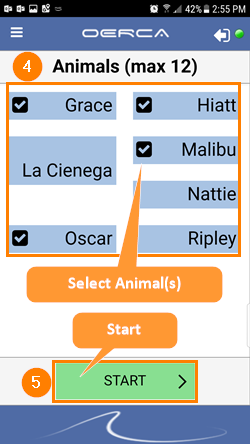
Select the animals you wish to record a respiration for from the available list. A check-mark will appear next to each animal you have included.
-
Press the Start button when ready to tally respirations.
-
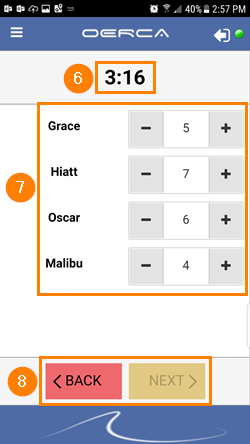
The timer will begin counting down from five (5) minutes.
-
Tally each breath an animal takes by pressing the plus (+) button next to its name. Continue this for the five-minute period.
-
After the time reaches zero (0), press the Next button.
NOTE: The "NEXT" button will not become active until the count-down timer reaches zero. If any of the respirations need to be adjusted prior to submitting (clicking the "next button), the User can manually enter values into the fields or adjust with the plus/minus buttons as necessary.
-
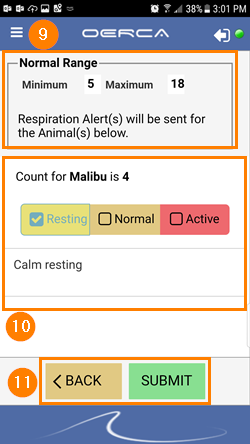
A final screen will appear notifying the User if any animals had a total respiration count outside of a normal range (as configured in you Company Settings).
-
If any animals were outside of the defined normal range, the User must select an activity level for each animal that was outside that range and write a brief comment. This information will be included in a Respiration Alert notification that will be sent to Users assigned to this alert in the Communication Center.
-
Press the Submit button when complete.
Comments
0 comments
Please sign in to leave a comment.