

OERCA's Mobile Web Application
OERCA's mobile web application allows users to easily record the most essential information from your smartphone or tablet. The intuitive mobile interface makes navigation simple and quick. What's more, once you have logged into the mobile platform, you can continue to use it and record information even if you lose your internet connection. All information can be synced when you regain your connection.
NOTE: The easiest way to access OERCA's Mobile Web Application is to simply visit oerca.net on your mobile browser. The OERCA system will detect that you are using a mobile device and default to the Web App (and not the desktop version of OERCA).
TIP: We recommend that you create a shortcut to the Web App on your phone or tablet for easy access. By creating a shortcut, the Web App will also look and behave exactly as a native app when opened. This is because the OERCA Web App is what is known as a "Progressive Web App" or PWA. It not only behaves just as a native app; but also has the ability to work offline after the initial connection is made.
Menu Overview
Main Menu
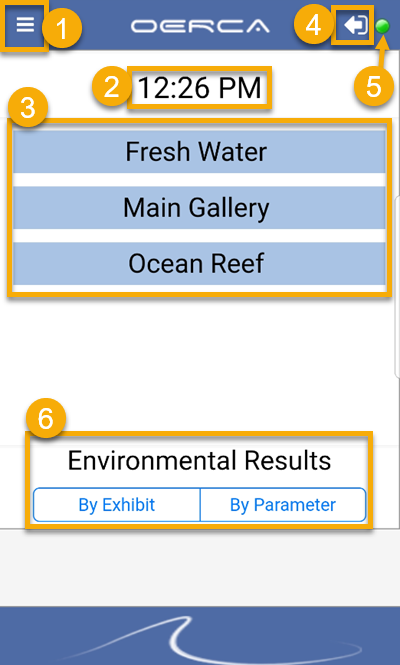
Below is the menu you will land on after you log into the OERCA Mobile App. The Area/Exhibit Group list that shows in the center of the menu will depend on what your primary Facility assignment is (which is designated when your User profile is created).
-
Facility/Function Menu: Tap here to access the facility/function menu from the main menu (see below for more detail).
-
Time: This will default to the current time; however, you can change the time for any activity you are recording by tapping on the time field.
-
Default Area/Exhibit Group List: This is a list of the Area/Exhibit Groups configured for your Facility. Tap on a Group to access the individual area/exhibits assigned to each Group. If you have Secondary access to other Facilities you can navigate to them by going to the Facility/Function Menu.
-
Log Out: Tap here to log out of OERCA
-
Connection Status: This indicator orb will show your internet connection status. A GREEN orb indicates you are connected to the internet, while a RED orb shows that you are disconnected.
-
Environmental Results: Environmental results are displayed prominently on the main menu for easy access. Before you can use the Environmental Results tool to enter data, you must first select an Area/Exhibit (e.g. tank, habitat, etc.).
Facility/Function Menu
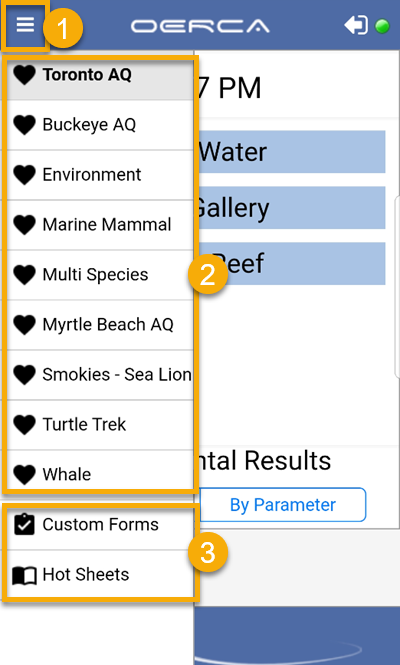
The Facility/Function menu allows Users to navigate to other facilities they have secondary access to. It also includes other Company level tools such as Custom Forms and Hot Sheets.
-
You can open the Facility/Function Menu by tapping on the menu icon in the upper left corner of the screen.
-
A list of Facilities that your User account has access to will show at the top of the menu with a heart icon next to them.
-
Users can also access Custom Forms and Hot Sheets from this menu.
Data Entry Functions
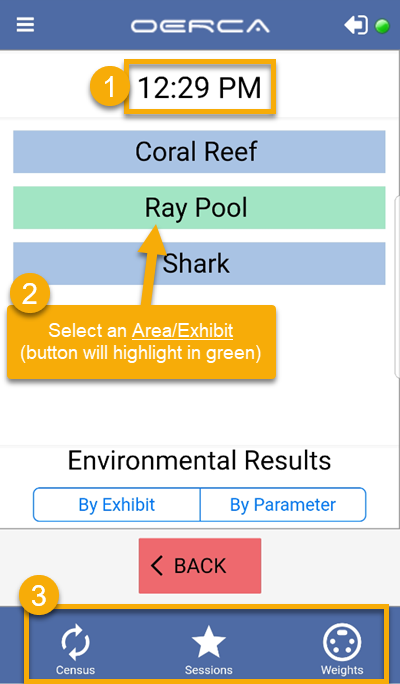
While some Company level tools can be launched from the Facility/Function Menu, others require the User to select a specific Area/Exhibit (e.g. tank, habitat, etc.) in order to enter data. See the illustration below for more details.
-
Before you launch any data entry tool, you have the option to adjust the time by tapping on the time field. Since the mobile app was designed for "real time" data entry, the User cannot change the date, they can only adjust the time for the current day.
-
An Area/Exhibit must be selected from the list for the activity icons to appear in the bottom navigation row. Your selection will be confirmed by highlighting the button in green.
-
Once an Area/Exhibit is selected, a series of activity icons will appear in the bottom navigation row. Select the activity you would like to record data for. This row of icons may change based on the facility type. If the facility has additional data entry options, you can access them by scrolling the activity icons to the left.
Activity Icons/Primary Mobile Functions
Below are the key functions that can be recorded using OERCA's mobile platform:
- Census Activity
- Session Records
- Respirations
- Animal Weights
- Environmental Results
- Hot Sheets
Comments
0 comments
Please sign in to leave a comment.