

Summary
OERCA's Mobile application gives Users the ability to record key data on their smart phone or tablet while in the field. Below are detailed instructions showing how water quality test results can be entered using OERCA's mobile application.
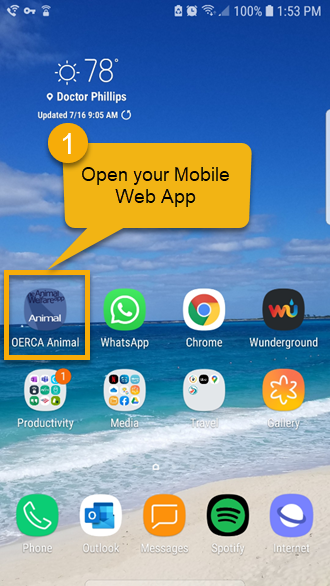
OPEN YOUR MOBILE WEB APP:
-
Open the OERCA web app on your phone or tablet by going to oerca.net in your mobile browser. For easy access, we suggest that you create a link to our Progressive Web App.
-
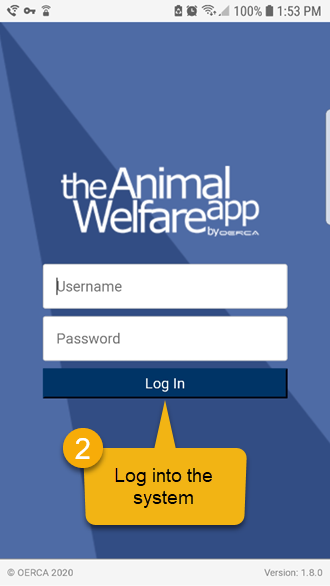
Log in using your Username and Password.
TIP:
While most people are familiar with "native" apps that are downloaded to your mobile device; there are many notable benefits to using Progressive Web Apps (PWAs); which is why OERCA utilizes this technology. This means that you do NOT have to go to an app store do download our mobile app. Instead, simply go to oerca.net in your mobile web browser. As noted above, it is easy to make a shortcut for convenient access.
Once logged in, you have the option to record environmental results by EXHIBIT or by PARAMETER.
TO RECORD ENVIRONMENTAL RESULTS BY EXHIBIT:
-
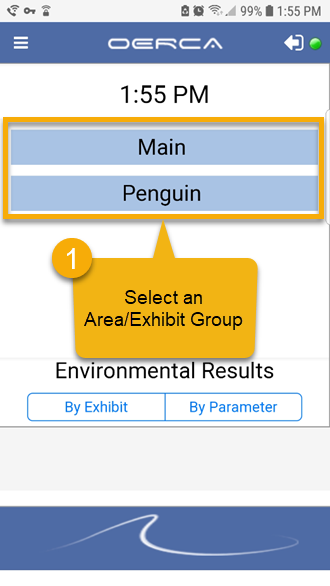
Select the Area/Exhibit GROUP that you are recording environmental results for.
-
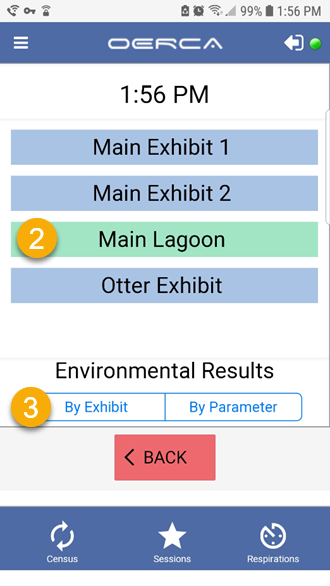
Select the Area/Exhibit. It will highlight in green when selected.
-
Click the "By Exhibit" button
-
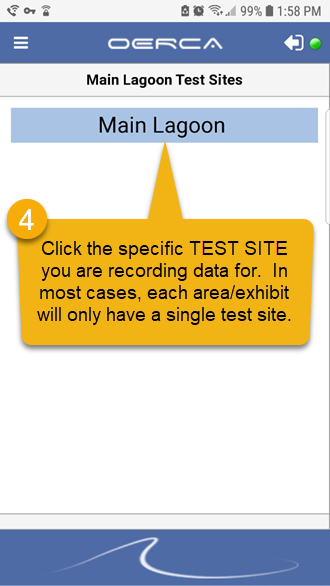
Click the specific TEST SITE you are entering results for. In most cases, there will be only an single test site to choose from, and it will have the same as the area/exhibit.
-
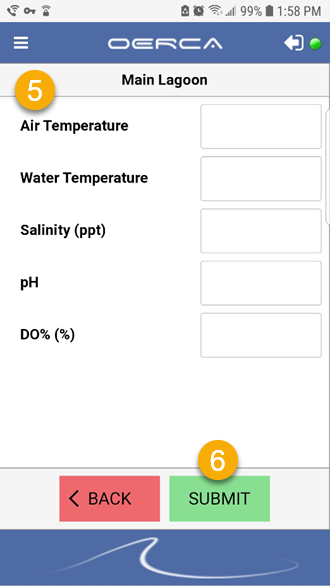
Enter values for each parameter you have results to record.
-
Click the SUBMIT button.
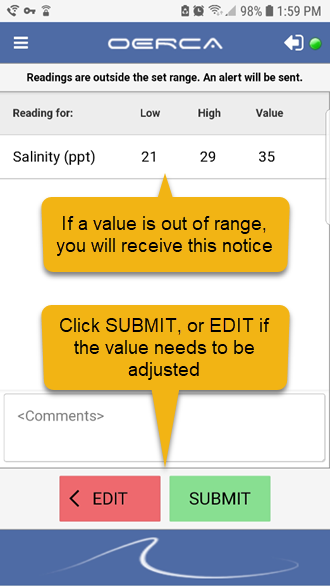
NOTE: If a value is entered that is outside the configured high/low range for a parameter, you will receive a warning letting you know an alert will be triggered. You then have the option of submitting the result and triggering the alert, or editing the value if a mistake was made when keying in the result.
TO RECORD ENVIRONMENTAL TEST RESULTS BY PARAMETER:
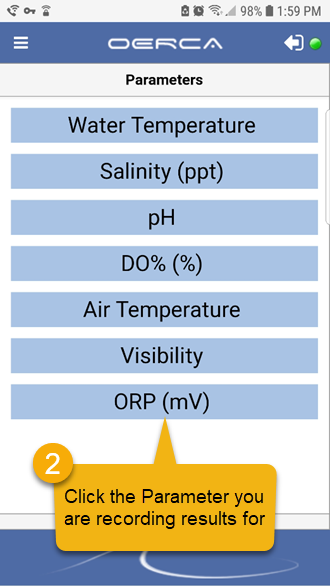
-
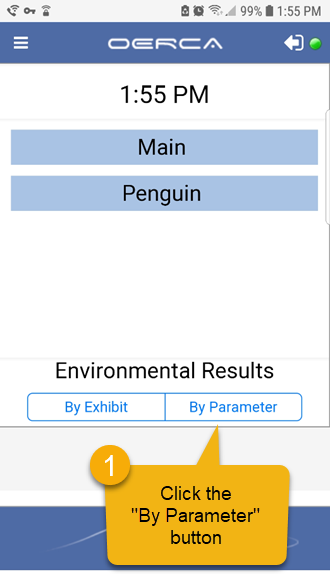
Click the "By Parameter" button.
-
Click on the parameter you are recording test results for.
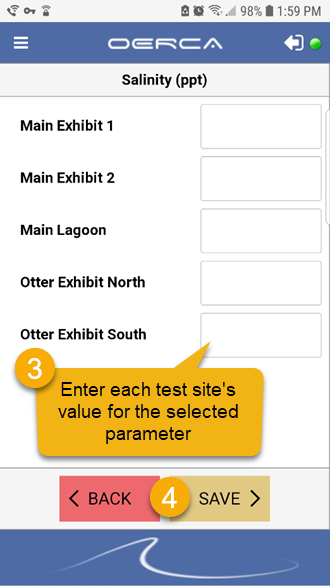
-
Enter each Test Site's result for the selected parameter.
-
Click the Save button.
-
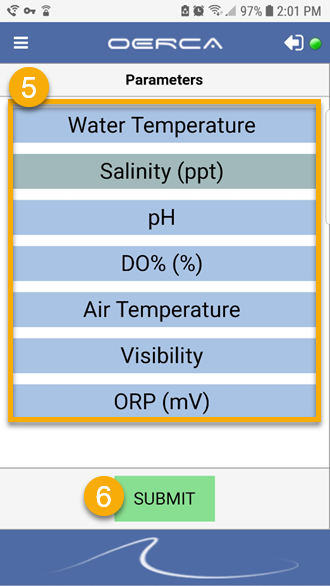
Repeat this process for each parameter you are recording results for.
-
Click Submit.
Comments
0 comments
Please sign in to leave a comment.