

Summary
OERCA's Mobile App was designed to simplify many types of record input. Perhaps the most utilized tool in the OERCA system is recording daily session or feed records. Below are detailed instructions showing how session records are entered into the system utilizing OERCA's mobile application.
To enter session records via the mobile application, follow these steps:
 OR
OR 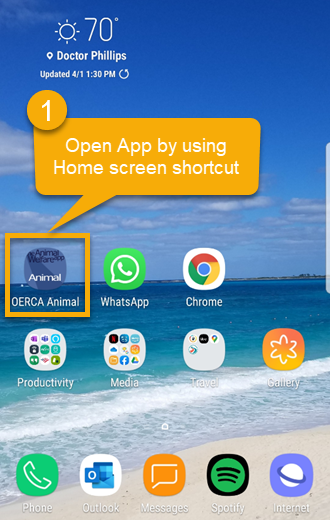
-
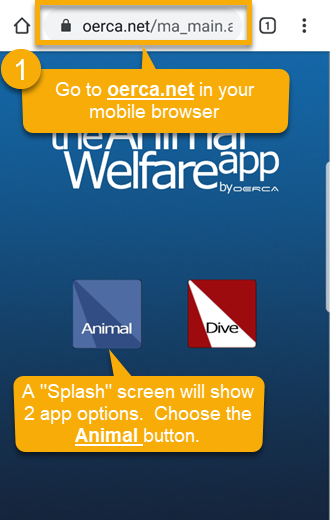
Open OERCA's Mobile App on your phone or tablet. Since OERCA uses a Progressive Web App (PWA) there is no need to download any software from an app store. All you need to do is open your mobile browser and go to oerca.net. You can also install a shortcut to the mobile app, such as the one shown in the image above. This will take you to the sign-in screen where you will enter your User credentials to log into OERCA.
NOTE: If you are going to oerca.net for the first time, you will be directed to a "splash" screen that will give you the option between two applications; (1) Animal; and (2) Dive. Make sure you select "Animal" for entering session records. Once on the Animal app, you can add the app to your Home screen for easy access.
NOTE: Depending on the browser you are using, the process to create a shortcut may be different. On most Android devices, the User will be prompted by the browser to "install" the app and add it to your Home screen. If you are using Safari on an iPhone, you can manually add the app to your Home screen.
TIP: While most people are familiar with "native" apps that are downloaded to your mobile device from an "app store"; there are many notable benefits to using Progressive Web Apps (PWAs). Due to these special benefits and current trends that often make PWAs preferred over native apps, OERCA utilizes PWA technology.
-
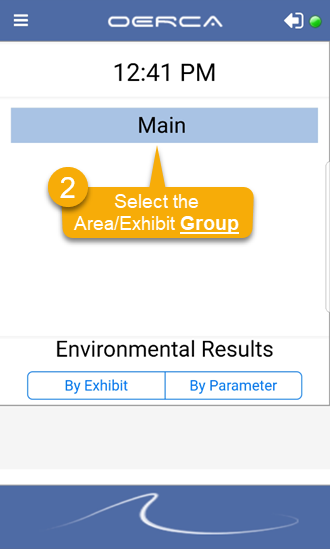
Select the Area/Exhibit Group to view a list if that Group's assigned Area/Exhibits.
-
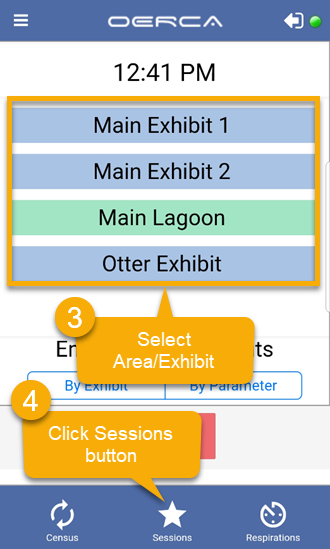
Select the the Area/Exhibit in the list that houses the animal(s) you are recording session/feed records for.
-
Once an Area/Exhibit is selected, a series of action buttons will appear along the bottom of the screen. Tap on the Sessions button (star icon).
NOTE: If your User Profile has Secondary Access to other Facilities within your Company setup, you can view and select those Facilities by pressing the Menu icon in the upper left corner of the app. For more information on Menu navigation, see our Overview article.
TIP: If you need to change the time of the session, you can tap on the time display to edit.
-
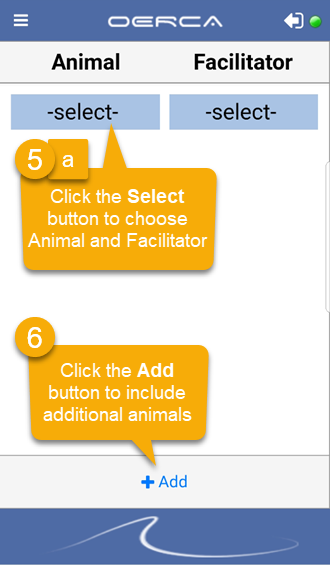
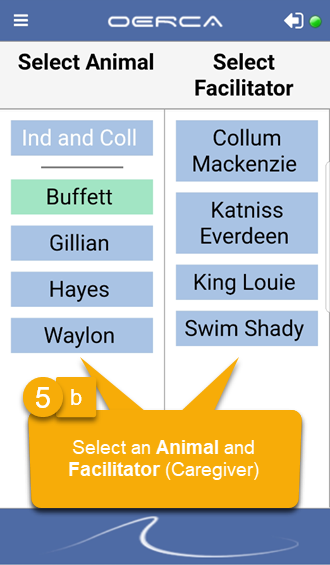
(a) Tap on the -select- button; and then (b) choose the Animal and Facilitator for the session from the available list.
-
Tap on the Add button at the bottom of the menu to include additional Animals/Facilitators. Repeat as necessary.
-
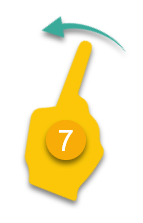
Swipe your screen to the LEFT to open the session menu.
-
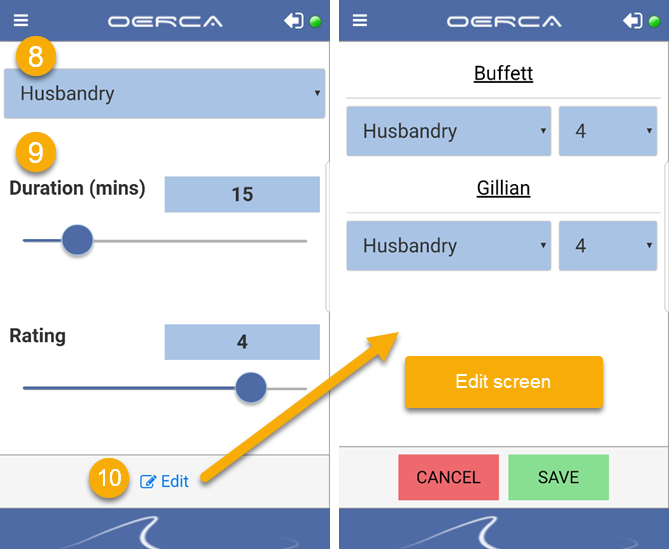
Choose a Session Type from the drop-down menu.
-
Use the slider bars to select both the Duration and the Rating for the session.
-
[OPTIONAL] Click the Edit button if you need to adjust the SESSION TYPE or RATING for any of the animals you are recording the session for.
-
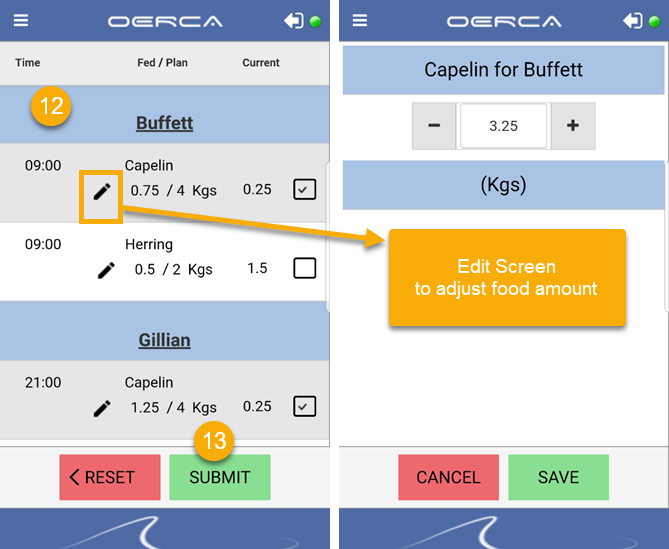
Swipe LEFT to add food to the session.
-
Depending on how your Nutritional Plans (or Diets) are set up, you can check the box of the food you are feeding; OR, you can click on the pencil icon next to any food type to adjust the amount. Clicking on the pencil icon will take you to an edit screen as showing above. Tap the Plus (+) or Minus (-) buttons to change values to the proper food amounts for each animal, or you can tap inside the number field and manually enter a specific food amount.
-
Press the Submit button once food selection and amounts are set.
-
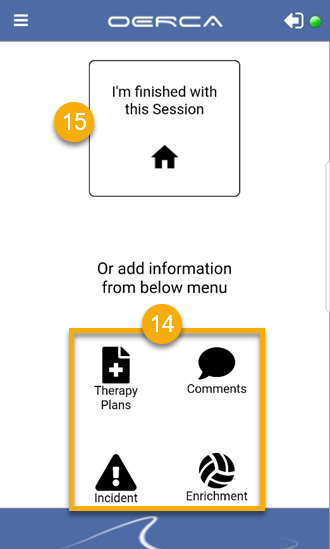
[OPTIONAL] You have the option to append additional information to your session record if required. This includes Therapy Plans, Comments, Incidents and Enrichment; tap the corresponding button to launch each data entry tool.
NOTE: Both the Incident tool and Enrichment options are configured in the Facility Settings; so can be tailored to fit your team's requirements.
-
When finished, tap the Home button in the center of the screen to complete your record entry.
Comments
0 comments
Please sign in to leave a comment.